Mock Test - 08
Read the instructions and syllabus carefully before you begin.
Read the following instructions carefully!
It is advised to attempt tests on the Web only for a better experience.
Go through various question palette symbols and understand their meanings before starting the examination.
1. The total duration of the test is 120 minutes.
2. A clock will be set on the server, displaying a countdown timer for the examination duration. Once the timer reaches zero, the test will end automatically.
3. The Question Palette, positioned on the right side of the screen, will indicate the status of each question using the following symbols:
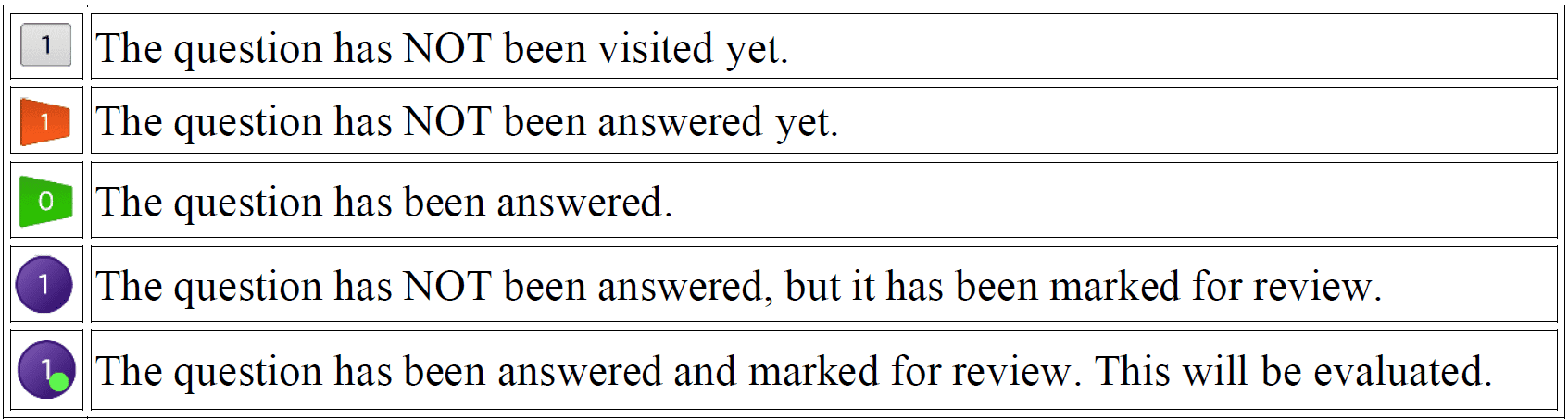
4. You can click on the arrow (>) which appears to the left of the question palette to collapse the question palette thereby maximising the question window.
5. To view the question palette again, you can click on (<) which appears on the right side of the question.
6. You can click on the "View In" option on the top right corner of your screen to change the language during the exam for the entire question paper. On clicking you will get a drop-down to change the question content to the desired language.
Navigating to a Question:
To answer a question, do the following:
1. Click on the question number in the right-side Question Palette to go directly to that question. Note: This option does NOT save your answer for the current.
2. Click on Save & Next to save your answer for the current question and then go to the Next.
3. Click on Mark for Review & Next to save your answer for the current question, Mark it for review, and then go to the next.
Answering a Question:
Procedure for answering a multiple choice (MCQ) type question:
1. To select your answer, click on the button of one of the options.
2. To deselect your chosen answer, click on the button of the chosen option again or click on the Clear Response.
3. To change your chosen answer, click on the button of another.
4. To save your answer, you MUST click on the Save & Next.
5. To mark the question for review, click on the Mark for Review & Next.
Navigating through sections:
1. Sections in this question paper are displayed on the top right hand of the screen. Questions in a section can be viewed by clicking on the section name. The section you are currently viewing is highlighted.
2. After clicking the Save & Next button on the last question for a section, you will automatically be taken to the first question of the next section.
3. You can shuffle between sections and questions anytime during the examination as per your convenience only during the time stipulated.